How to Create a Pool
A field-by-field guide to the Create Pool form, with practical advice on how to choose settings that fit your group.
Opening the Create Pool form
To create a new pool, click Create Pool from the Golf Pool Pro home page or your dashboard. If you are not logged in, you will be asked for an email address — use one you actively monitor, since it will be used for sign-in links and pool management going forward.

Tournament
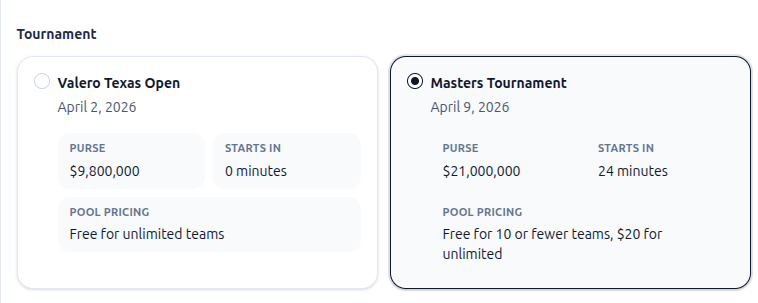
Select the tournament the pool will be built around. Normally there is only a single tournament shown, but on occasion there may be two.
This choice should match the event your group expects to follow. If your audience is casual, pick a marquee event they already know — the Masters, PGA Championship, or U.S. Open. If your group follows golf closely, you have more flexibility. Double-check the tournament dates before you send invitations so nobody joins the wrong pool by mistake.
Pool name
Choose a memorable pool name your players will recognise immediately.
A good pool name is short, specific, and tied to the audience — the company name, friend group, family, or annual tradition behind the event. If you run more than one pool during the season, distinct names prevent confusion when players receive their invitation links.
Scoring format
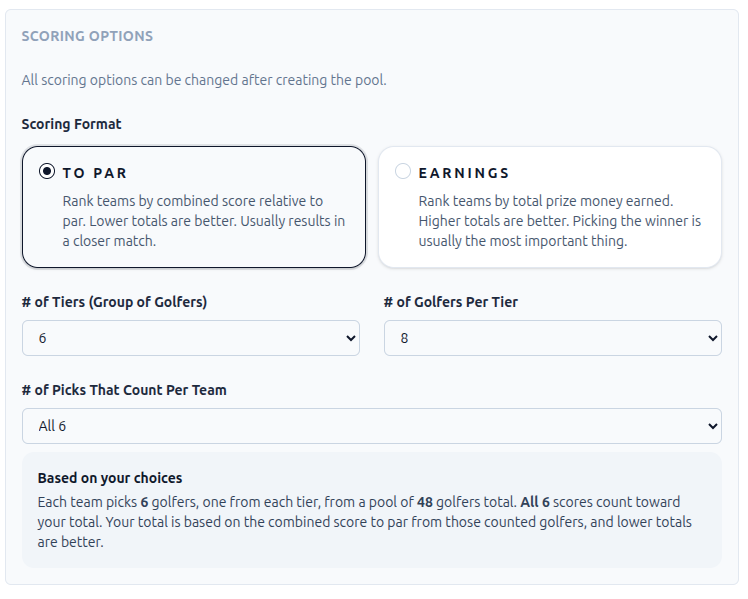
Choose how the pool will rank teams.
To Par
This format ranks teams by their combined score relative to par, with lower totals performing better.
Choose To Par if you want the pool to feel balanced across the field. Scores are tighter because every golfer on a team contributes, not just the winners. It also means the leaderboard stays competitive even when the favourite runs away with the tournament.
Golfers who miss the cut (CUT), withdraw (WD), or are disqualified (DQ) receive +8 for every round they do not play. In a four-round event with a two-day cut, a golfer who misses the cut at -2 finishes on +14 — their two-round score plus +8 for each of the two missed weekend rounds.
Earnings
This format ranks teams by total prize money earned, with higher totals performing better. During tournament play, earnings are estimated as close to the actual amounts but these estimates are not final and may change when the tournament ends and the actual prize amounts are posted.
Choose Earnings if you want a more top-heavy contest where bold picks matter most. One or two standout golfers can define a team's outcome, which creates stronger moments but also means lineup depth matters less. This format tends to work well for groups that love following the tournament winner.
Golfers who do not complete the tournament contribute $0 to a team's total, with a small number of exceptions — some tournaments, such as the U.S. Open, award a nominal prize to golfers who miss the cut.
Number of tiers
Set how many tiers your draft board will have. A tier is a grouping of golfers. In normal circumstances you will have equally matched players in the same tier.
Tiers divide the field into ranked groups. Players select one golfer from each tier when they submit their entry. More tiers mean more picks per team, more depth in the competition, and more ways for lineups to diverge. Fewer tiers keep the game simple and are easier for first-timers to understand.
If your group is new to golf pools, start with three or four tiers. You can always add more in future seasons.
Players per tier
Set how many golfers appear in each tier.
Smaller tiers make each pick feel more consequential because the choices are tighter and more players will overlap. Larger tiers give entrants more flexibility and can create greater differentiation between teams. If your group enjoys strategy, a slightly larger tier size rewards research.
This setting is a starting point. After the pool is created you can edit the tier list freely — adding, removing, or reassigning golfers — before the first team submits picks. For example, you could move every remaining golfer in the tournament field into the final tier so that no eligible golfer is left off the board.
Golfers counted
Choose how many of each team's picks count toward the final score.
Setting this equal to the number of tiers means every pick contributes. Every missed cut or withdrawal hits the team directly, which rewards careful lineup construction.
Setting this lower than the number of tiers — for example, counting 4 of 6 picks — means the worst-performing golfers on a team are dropped from the score. This format, sometimes called "pick 6, use 4," adds a safety net that keeps more teams competitive deep into the weekend and introduces more variance into the standings. If you are using TOPAR scoring I would recommend counting less players than the number of tiers because (CUT) golfers will damage the team's total score.
Max teams per email
Choose how many teams each email address can enter.
Set this to 1 for a simple contest where each person gets one shot. This keeps the standings easy to follow and prevents one participant from dominating the field with volume. Allow more than one team if multiple entries are part of the format or if you want to increase participation from a smaller group.
Auto approve entries
Decide whether new teams join the pool automatically or wait for your approval.
Turn auto-approval on when you want the smoothest experience and trust everyone who has the entry link. New teams appear in the standings immediately after they are submitted.
Turn auto-approval off when you need manual control over who is in the pool. This is the right choice when you are collecting entry fees — it lets you confirm payment before a team goes live. Pending entries are visible on your pool management page and can be approved or declined individually.
Only approved entries appear in the standings.
Creating the pool
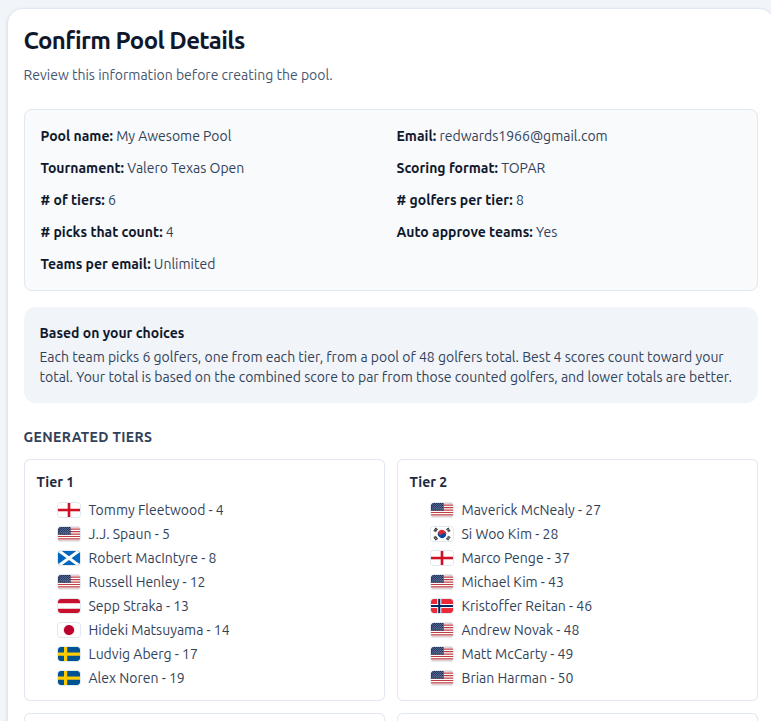
When you click Continue to Confirmation, the your pool setup is presented to you with the generated tiers.
Nothing is locked in permanently at this stage. You can return to the pool settings to adjust the name, scoring format, or entry limits before picks are submitted. The tier list can also be edited freely until the first team enters. Use the review page to review the tiers and pool setup.
Once you have created the pool, you can go to the dashboard and make changes to the tiers if needed before you invite your friends to join,
After creating the pool, you will receive an email detailing the make picks and leaderboard links.